What is Pewnote? Is it Different from Pewbeam?
Getting Started with Pewnote
Pewnote is a mobile companion app designed to help you capture live sermons, revisit them, and grow in your understanding and faith through your recorded sermon notes. It is a new way to stay present in church and engage with every message. Think of it as your personal AI companion for your faith journey.
Your sermon notes don't have to end on Sunday. Revisit the message on Monday, ask a question on Tuesday, test what stuck with a quiz on Wednesday, and turn the sermon into a devotional to keep you going throughout the week.
🎥 Watch the video below to learn about Pewnote
Where to get or download Pewnote
Pewnote is available on the iOS App Store (Now live) and Google Play Store (Coming soon on Android).
Creating your account
- Download Pewnote from the iOS App Store or Google Play Store.
- Open the app and sign up with your email, Apple ID, or Google account.
- Join your church using the church code your church shared with you. See joining your church. You can also use Pewnote and its features without connecting via a church code.
Set up for a smooth start
-
Join Pewnote with your church's unique Pewbeam: Once you join your church using their unique Pewbeam code, your church's recorded sermons will appear on the Pewnote home page. These sermon notes can then be used for devotionals, AI Chat, and quizzes.
NB: You can also use Pewnote and its features without connecting via a church code.
- Allow microphone access when asked: Pewnote needs it to record sermons and to use voice chat with Beam.
- Record each sermon: When the preaching begins, tap Take a note on the Home screen or the + button in the bottom menu. Stop recording when the sermon ends.
- Turn sermons into devotionals: Tap Create a devotional on the home page, pick a sermon, then tap Continue.
- Ask AI Chat about what you heard: Type your question, or use Beam to ask by voice. Type @ to focus your question on a specific note or series.
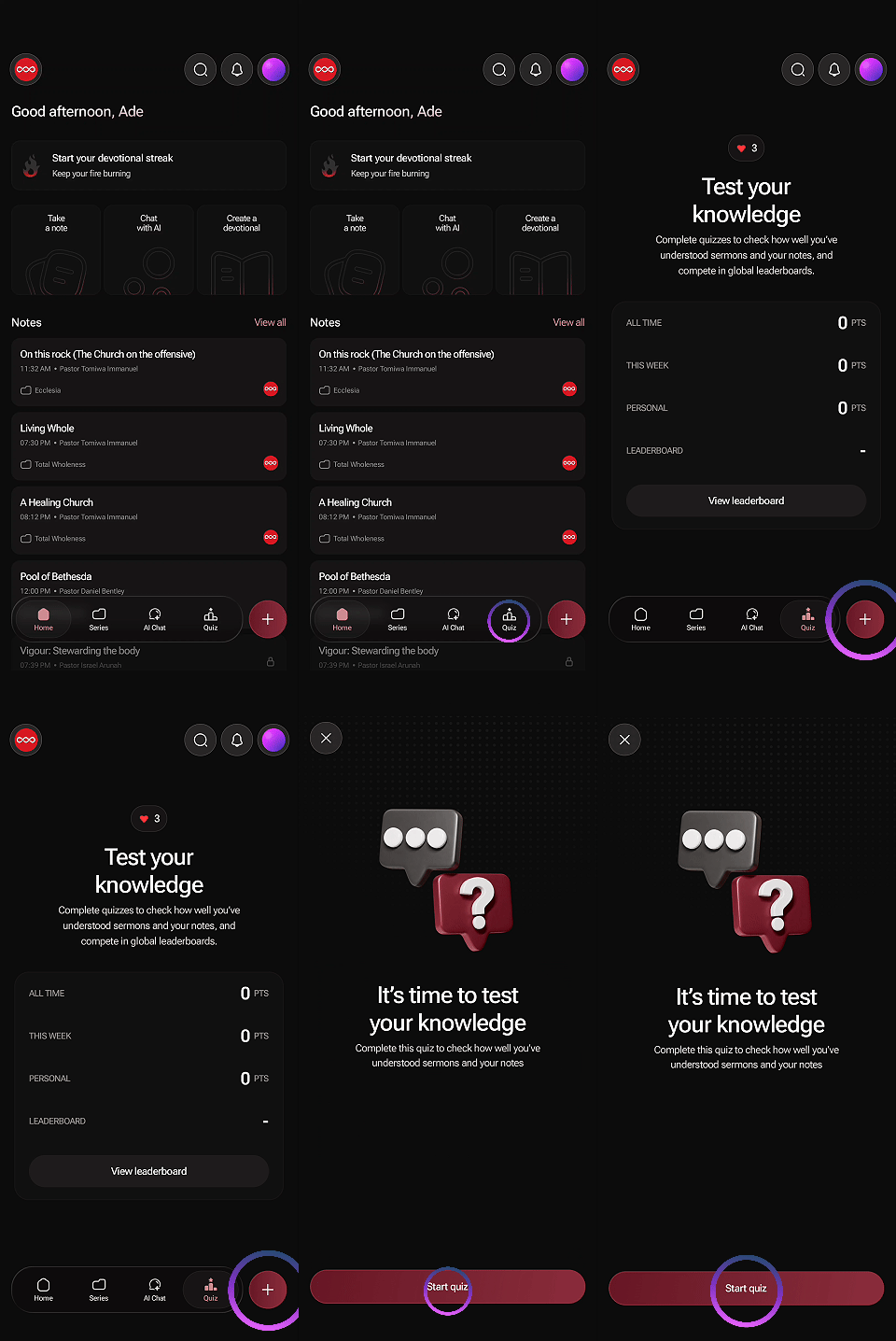
- Take a quiz after each sermon: Tap Quiz, then Start quiz, and pick your pace.
🪙 Pewnote Plans and Subscriptions
Pewnote offers a paid plan, billed either monthly or yearly. The exact amount, depending on your choice, will be clearly shown on the pricing page before you make a payment.
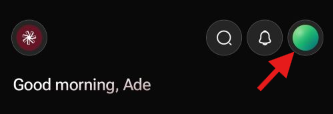
Click on the profile icon (top-right corner) on your home page and tap the Join Plus button to upgrade your plan.
⛪ Joining Your Church
Joining your church gives you access to its sermons, which appear on your Pewnote home page and under From your church when you create a devotional.
Join with a church code
- Get your church's code from your church.
- Open Pewnote and enter the code to join your church.
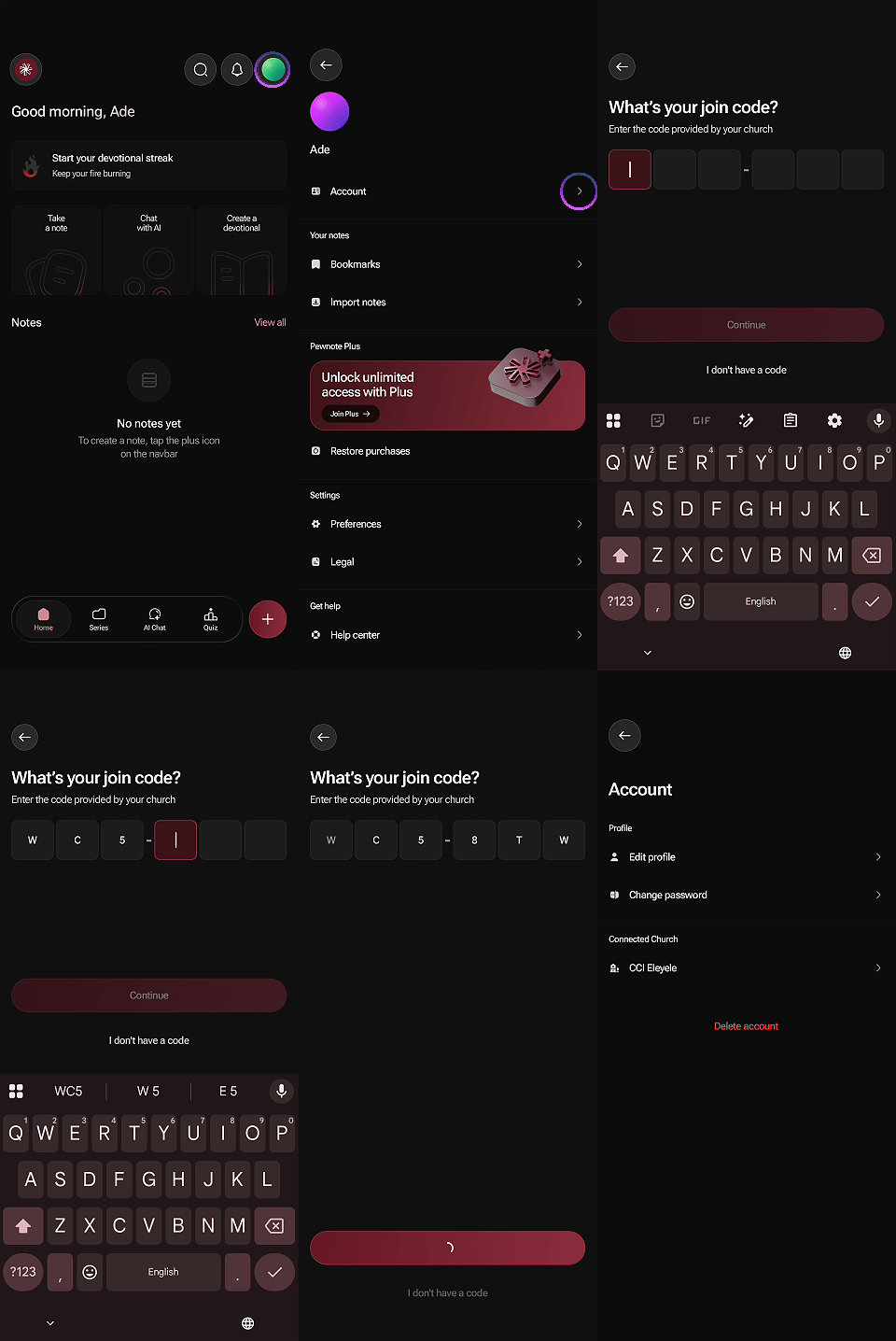
💡 You can also use Pewnote as a standalone app without connecting via a church code.
🎙️ Recording a Sermon
Pewnote transcribes a sermon live as you record, then turns it into structured notes you can revisit any time.
How to record
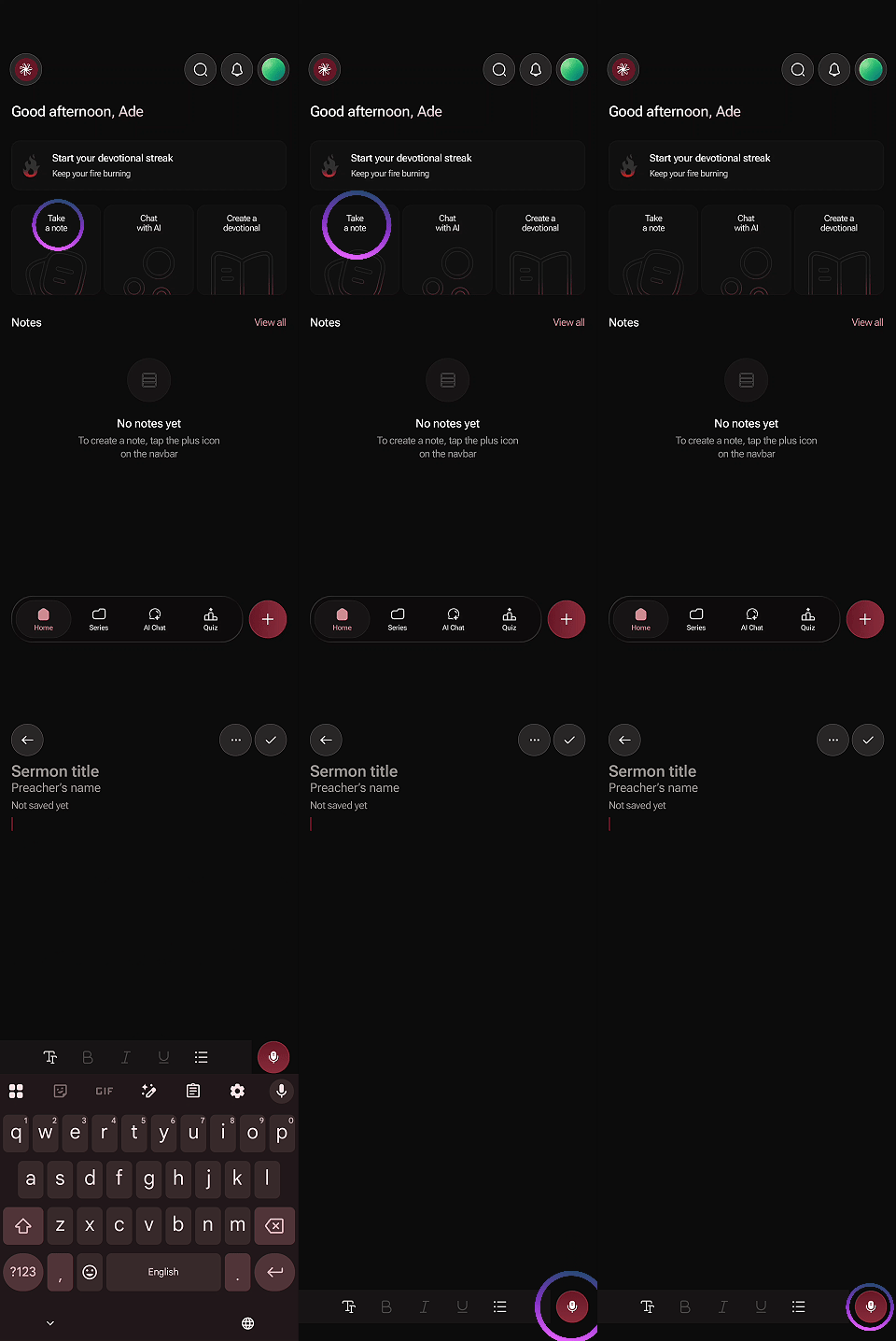
There are two ways you can record a sermon:
Method 1 - Plus Button
- Tap the + button (bottom-right corner) of your Pewnote home page.
- Add the Sermon title and Preacher's name. This is optional, as Pewnote can generate both for you.
- Tap the Start Sermon (microphone icon at the bottom-right corner) button. Pewnote will begin transcribing as the preacher speaks.
- When the sermon ends, stop the recording, and your structured notes will be generated.
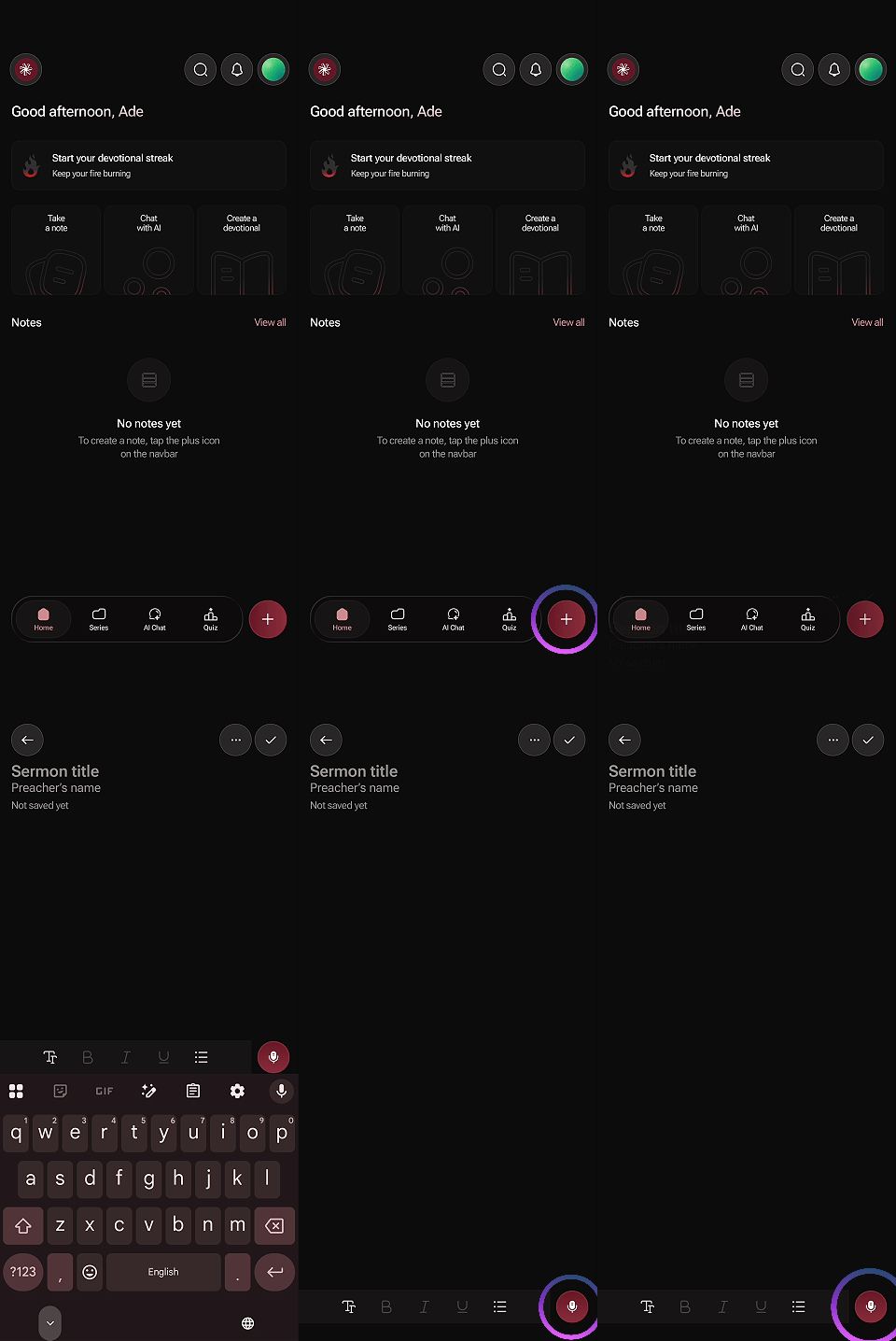
Method 2 - "Take a note" Button
- Tap the Take a note card located at the top of your Pewnote home page.
- Add the Sermon title and Preacher's name. This is optional, as Pewnote can generate both for you.
- Tap the Start Sermon (microphone icon at the bottom-right corner) button. Pewnote will begin transcribing as the preacher speaks.
- When the sermon ends, stop the recording, and your structured notes will be generated.
📓 Creating a Devotional
Pewnote can turn any sermon recording into a devotional, so the message stays with you through the week.
How to Create a Devotional
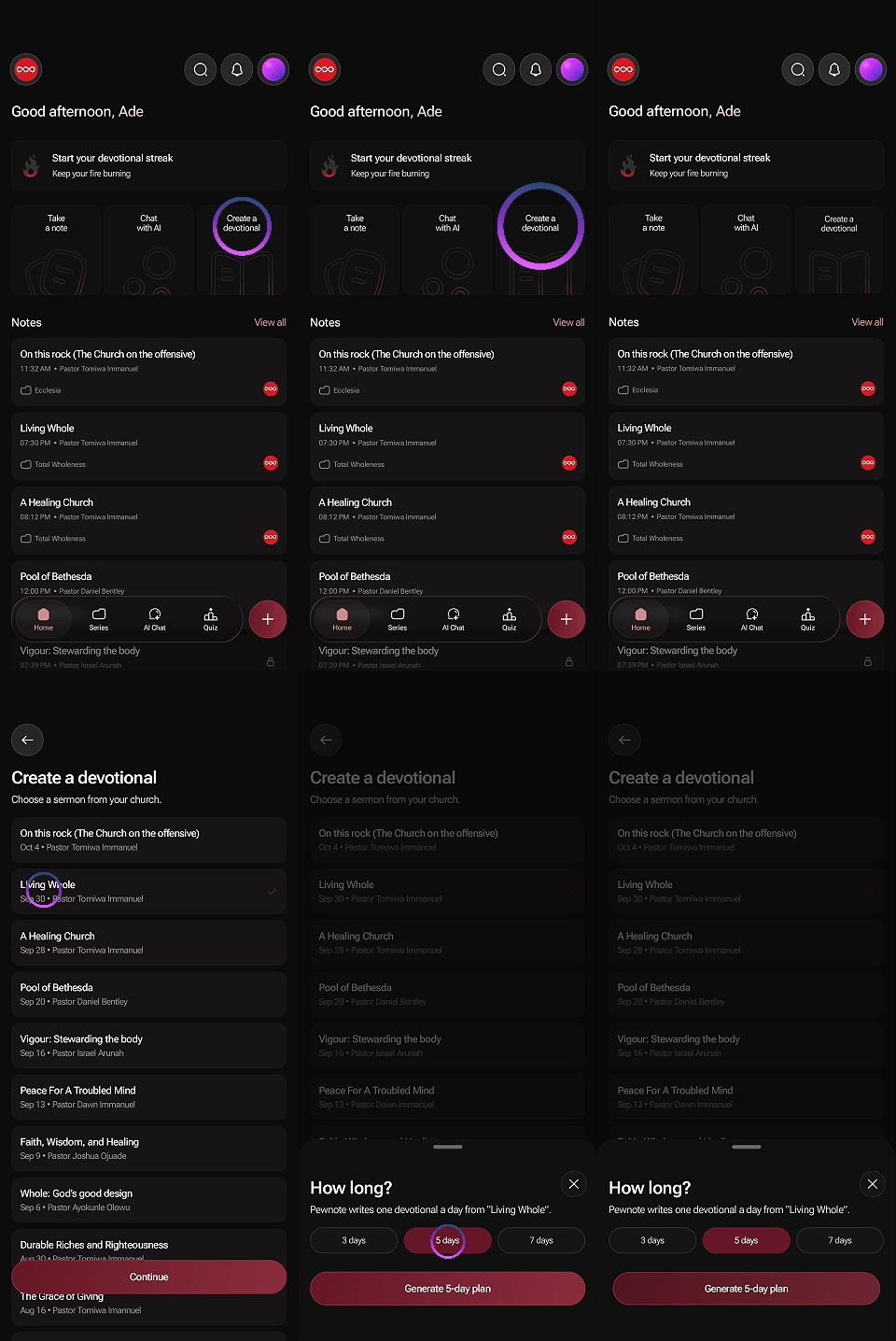
- On the Home screen, tap Create a devotional. You can also tap Generate devotionals on the All devotionals page.
- Choose a sermon; pick one under From your church or one of your notes.
- Tap Continue and your devotional will be generated from that sermon.
Your devotional streak
The flame counter on the All devotionals page shows your current streak.
🗣️ Using AI Chat or Beam (AI Voice Chat)
AI Chat answers your questions using your church's sermon archive and your own notes. You can ask in two ways: Type your question, or speak it using Beam—AI Chat's voice option.
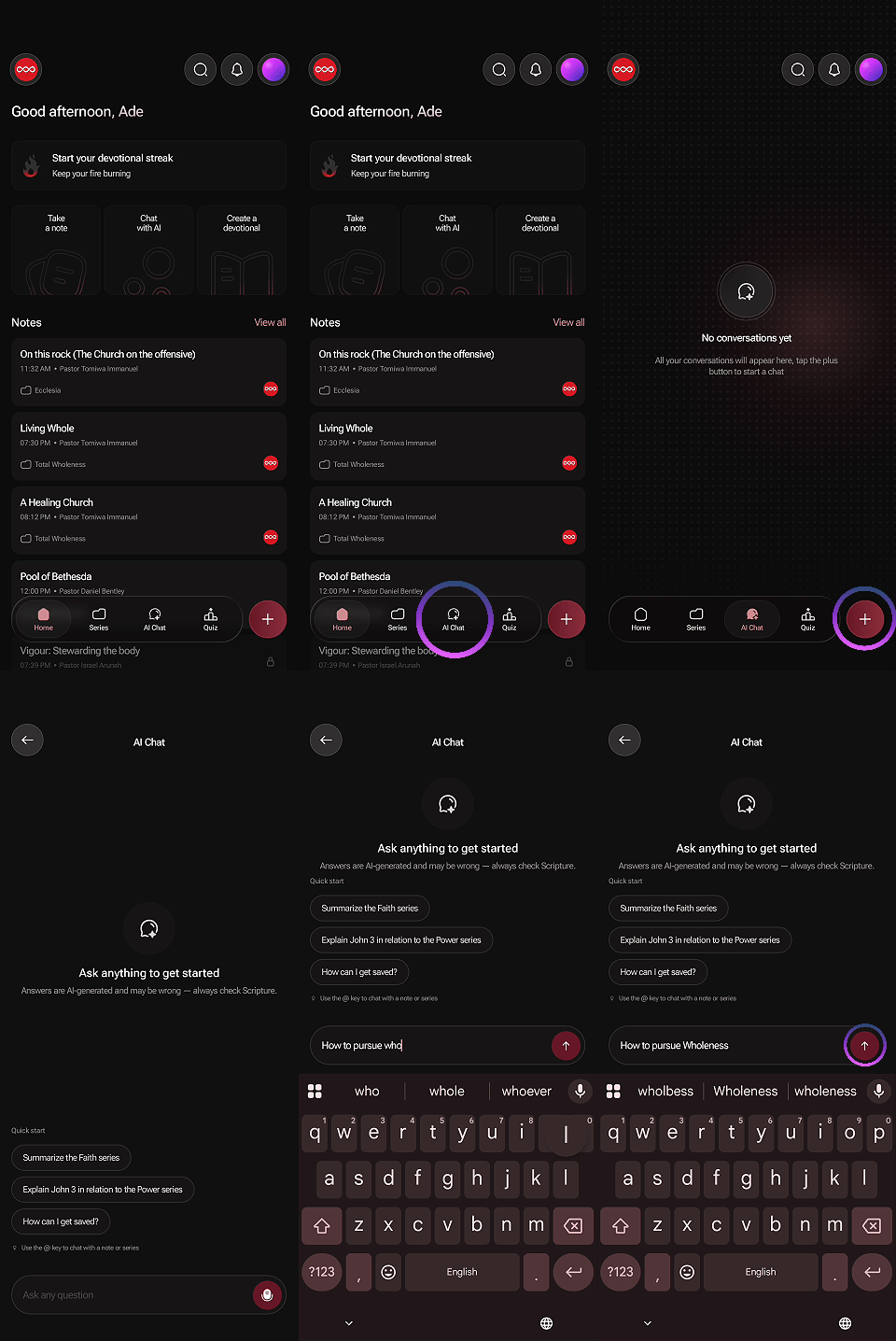
1. Start a chat (Text)
- Tap AI Chat in the bottom menu, or Chat with AI on the Home screen.
- Tap the + icon at the bottom-right corner of the screen.
- Type your question in Ask any question and tap the arrow to send.
Quick start prompts
Not sure where to begin? Tap one of the suggestions under Quick start, such as a summary of a recent sermon or series.
Chat about a specific note or series
Type @ in the message box, then choose the note or series you want to ask about. This keeps the answer focused on that content.
Example questions
- Summarize last Sunday's sermon.
- What scriptures were used in the "Son of God" series?
- What did I note about forgiveness this month?
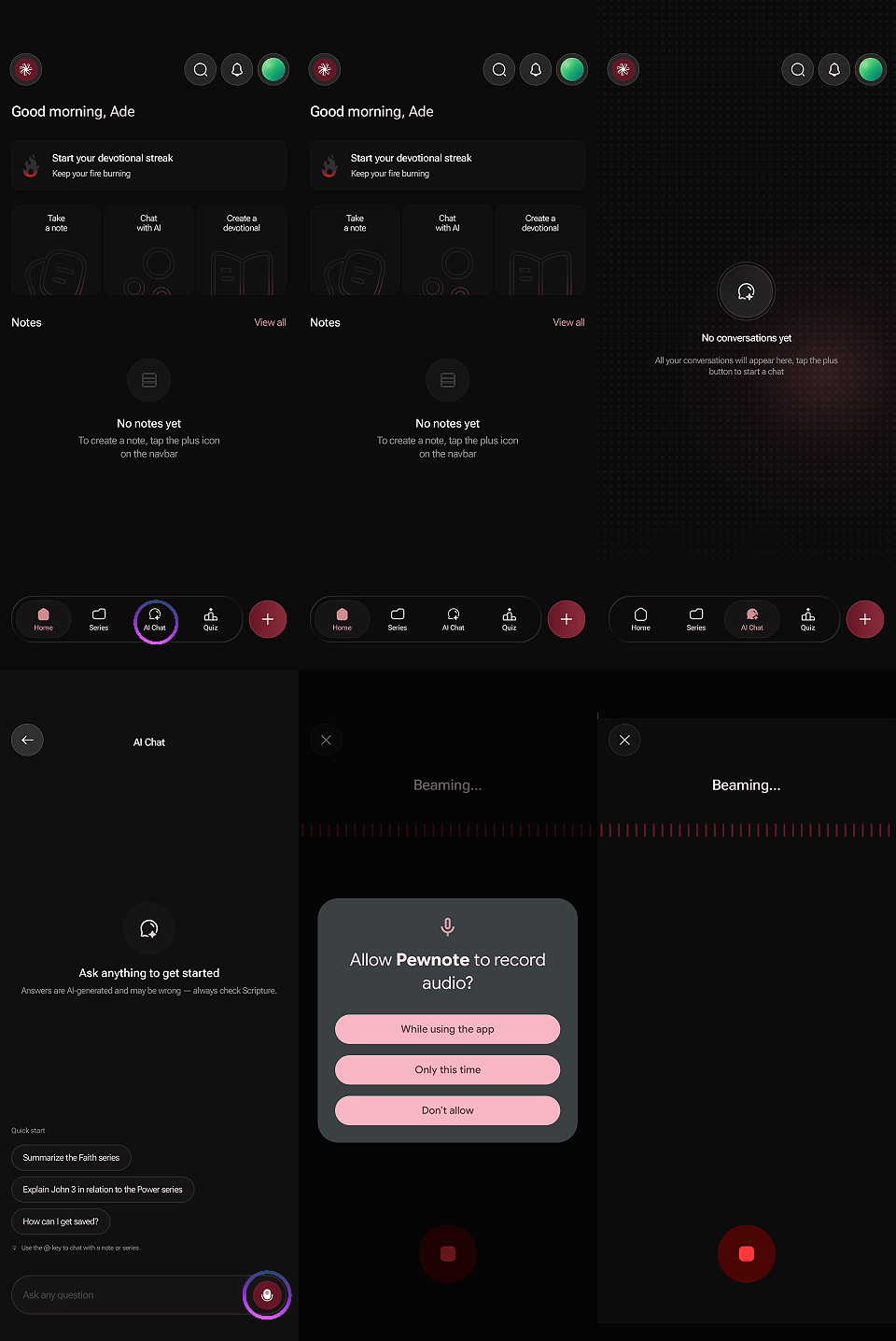
2. Ask by voice with Beam (AI Voice Chat)
Prefer to speak? Beam lets you ask out loud and hear the answer. It uses the same sermon archive and notes, so you can explore Scripture and your faith hands free.
- Tap AI Chat in the bottom menu, or Chat with AI on the Home screen.
- Tap the + icon at the bottom-right corner of the screen.
- Tap the Beam (microphone icon at the bottom-right corner) button and allow microphone access if asked.
- Ask your question out loud.
Voice or text?
|
|
Voice (Beam) | Text |
|---|---|---|
| How you ask | Speak | Type |
| How it answers | Voice | Text |
| Best for | Quick, hands-free questions | Detailed questions and summaries |
📝 Quizzes and the Leaderboard
Quizzes help you check how well you understood each sermon and your notes. You earn points for questions you answer.
How to take a quiz
- Tap Quiz in the bottom menu.
- Tap the + icon at the bottom-right corner of the screen.
- Tap Start quiz.
- Pick your pace and proceed to start the quiz.
| Pace | Time per question |
|---|---|
| Easy | 2 minutes |
| Medium | 1 minute |
| Hard | 30 seconds |
Your points
- All time: Every point you have earned since you started.
- This week: Points earned in the current week.
- Leaderboard: Your current rank. Tap View leaderboard to see the full list.
📧 How to Contact Us
If you have any questions or encounter any issues using Pewnote, please do not hesitate to contact us via any of our Support channels below:
Send an email to hi@pewbeam.com
Web Chat
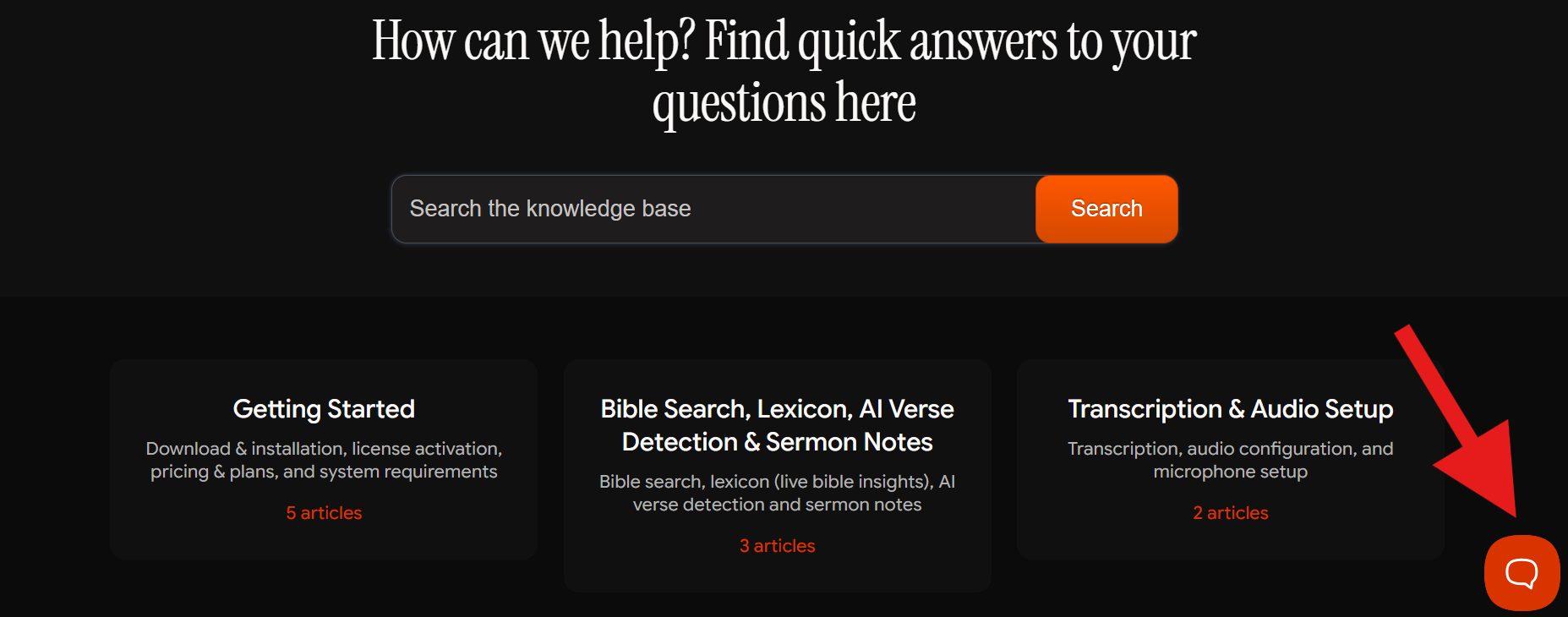
Click on the Chat widget icon at the bottom-left corner of any page in our help center.