How to Troubleshoot Issues & Report an Error
How to Troubleshoot Common Issues on Pewbeam
Transcription Not Starting or Stops Mid-Service
For Windows
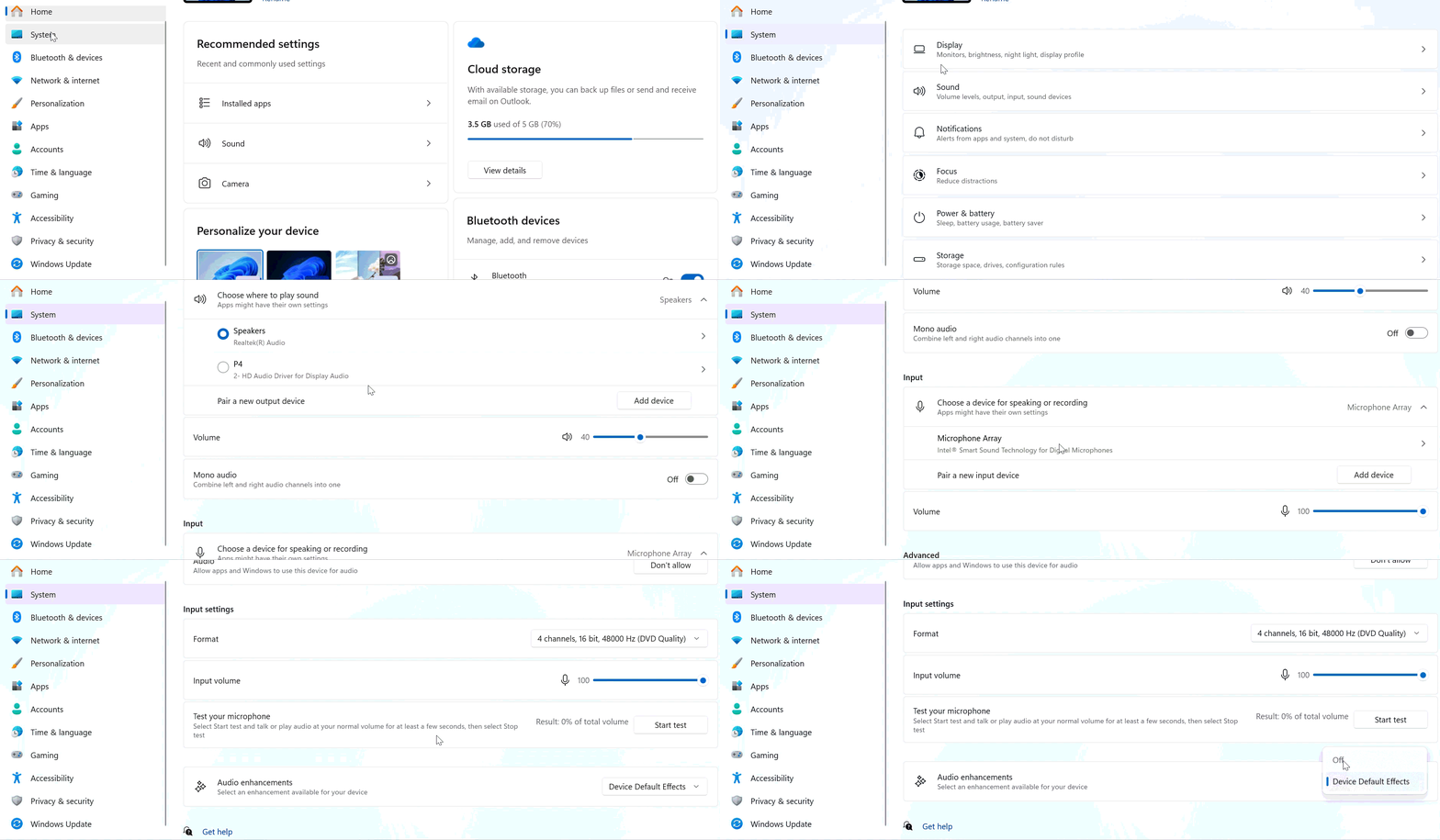
❗ Important: On windows, turn off Audio Enhancements feature first.
Depending on your computer brand, audio driver control panel, or operating system, the audio enhancement feature is also known as Signal Enhancement, Realtek Audio Effects, Omni-Voice / Noise Suppression, Microphone Noise Cancellation, Voice Clarity, Smart Audio, Dolby Audio Effects, DTS Audio Processing, etc.
-
How to turn off Audio Enhancements: Go to Settings > System > Sound > Input > Microphone > Audio Enhancements
- Restart the Pewbeam app and go to its Settings > Audio > Microphone to confirm that the correct microphone device is selected.
- Check the audio meter in the Live Transcript panel. It should respond when audio is played. If it stays flat, your input is not being picked up.
- If you are using Online Mode, check that your internet connection is stable.
- Check your system microphone permissions. Go to Settings > Privacy and Security > Microphone. Confirm Pewbeam has access.
- Stop transcription and restart it. If it does not resume, switch to Manual display mode for that verse and continue. Transcription usually catches up once restarted.
For Mac
- Go to Settings > Audio > Microphone and confirm the correct microphone is selected.
- Check the audio meter in the Live Transcript panel. It should respond when audio is played. If it stays flat, your input is not being picked up.
- If you are using Online Mode, check that your internet connection is stable.
- Check your system microphone permissions. Go to System Settings > Privacy and Security > Microphone. Confirm Pewbeam has access.
- Stop transcription and restart it. If it does not resume, switch to Manual display mode for that verse and continue. Transcription usually catches up once restarted.
Verses Not Being Detected
- Confirm that text is actively appearing in the Live Transcript panel. If it is empty, transcription is not running or picking up audio.
- Ensure speech is clear and at a normal pace. Extremely rapid speech can reduce detection accuracy.
- Direct scripture citations such as "John 3:16" are detected faster than paraphrased or thematic references.
NDI Output Not Showing in OBS, vMix, or ProPresenter
- Confirm NDI Output is enabled in the Outputs panel.
- Make sure both the Pewbeam laptop and the receiving software are on the same local network.
- Confirm your receiving software has the NDI plugin installed.
- Look for Pewbeam main in your software's NDI source list.
HDMI Display Not Working
- Confirm the external monitor is detected by your operating system before opening Pewbeam.
- In the Outputs panel, make sure you are selecting the correct external monitor and not your primary laptop display.
High CPU Usage or App Lag
- Close any unnecessary background applications before starting a service.
- In the Outputs panel, lower the broadcast frame rate from 60 FPS to 24 FPS to reduce rendering load.
How to Report an Error on the Pewbeam App
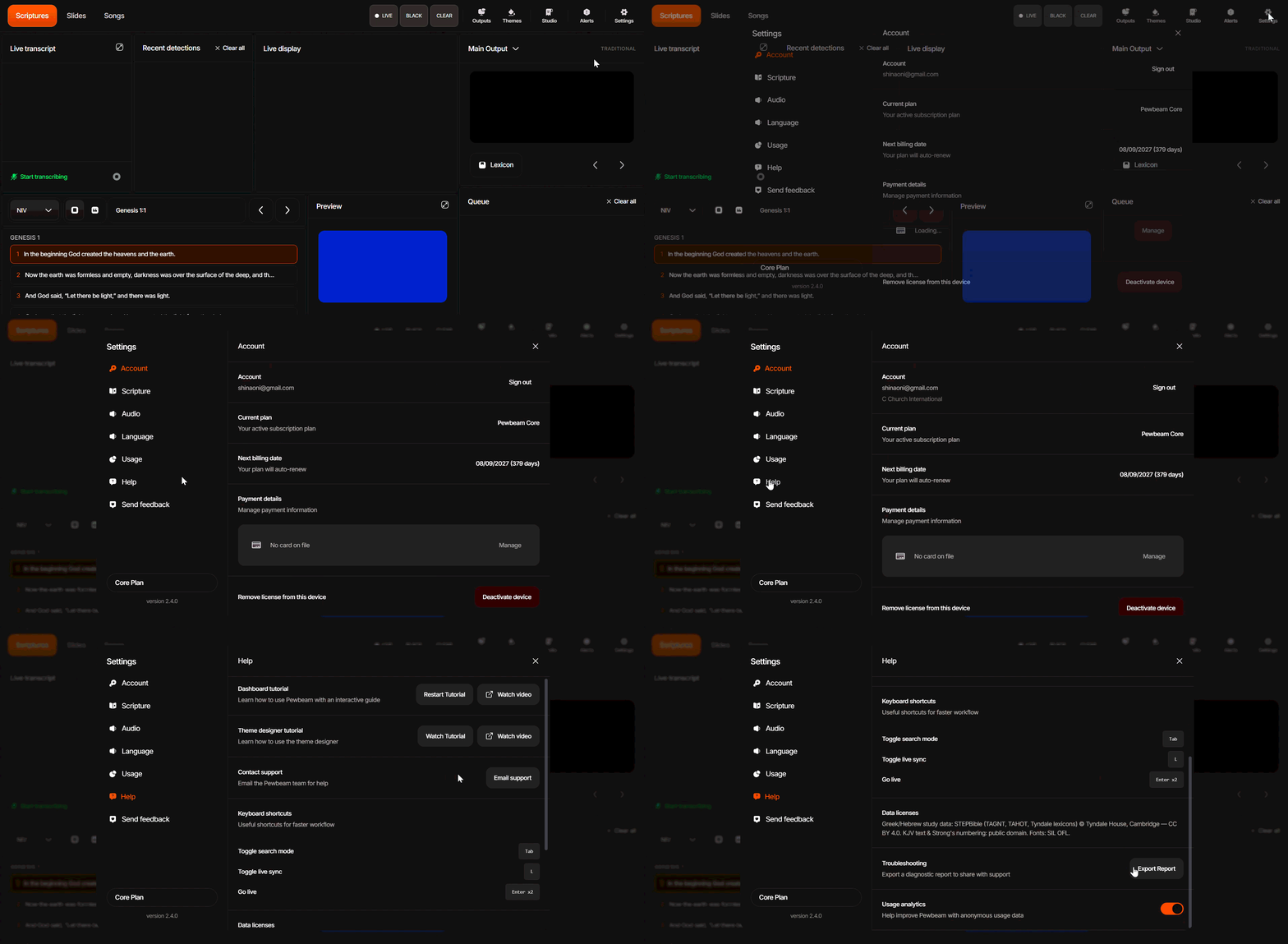
If the issue persists after trying the steps above, go to Settings > Help > Troubleshooting and click Export Report to generate a diagnostic report. Attach the exported report to your message along with your device type and operating system details and send to hi@pewbeam.com.